 0
0
 0
0
Watching live streams on modern Korean platforms like Chzzk or SOOP (formerly AfreecaTV) has evolved beyond single-camera broadcasts. During major esports tournaments like the LCK co-streams (같이보기) or massive streamer crew collaborations (합방 / 크루 방송), multi-view features allow viewers to display up to four different streamer feeds on one screen simultaneously.
However, many viewers and content creators misunderstand how the multi-view user interface handles chat rooms and audience metrics. You might wonder why your chat messages only appear on one streamer’s screen, or why the overall viewer count displays an inflated number compared to an individual streamer’s normal audience.
This guide explains the underlying metric logic of multi-view live streams and shows both viewers and streamers how to find accurate, standalone channel data.
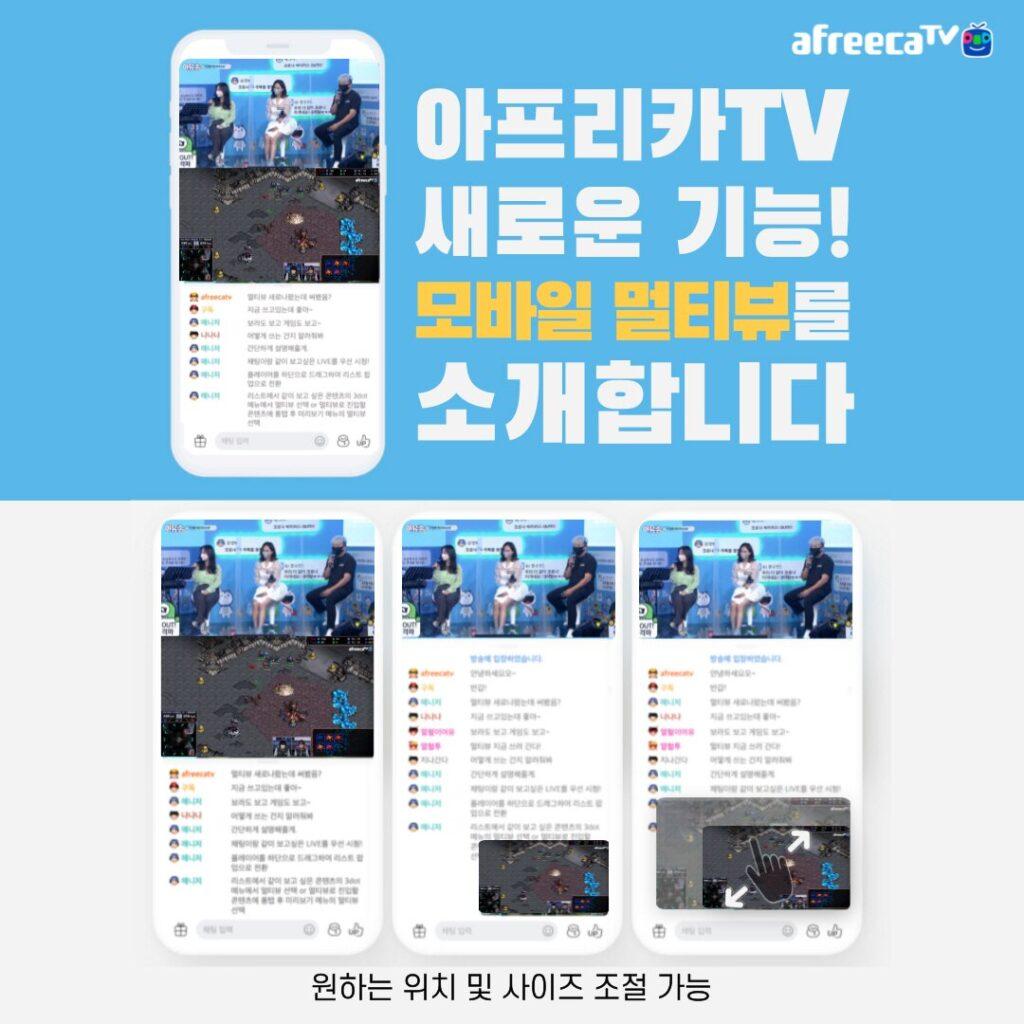
How chat and viewer metrics work in multi-view live streams
Multi-view interfaces are designed to balance video playback performance with community engagement. To achieve this, platforms treat chat boxes and viewer counters differently.
Active chat window switching (채팅창)
A common misconception is that multi-view screens merge all participating streamers’ chats into a single combined window. In reality, merging multiple fast-moving chat feeds into one box would create an unreadable wall of text.
Instead, the multi-view player isolates each streamer’s chat room. The chat panel on your screen automatically switches to display the conversation of whichever video window you currently have selected or highlighted in the player layout.
Combined viewer count math (시청자 수)
Unlike chat rooms, the prominent viewer count displayed on the main multi-view player is a combined total. The platform sums the live viewer counts from every individual stream included in the multi-view setup.
For example, if four streamers with 5,000 viewers each participate in a collaborative game stream, the multi-view page header will display a combined total of 20,000 viewers. This gives a clear picture of the event’s total reach across all participating channels.
How viewers and streamers can track individual channel metrics
Depending on whether you are an active chat participant or a streamer evaluating audience engagement, here is how to navigate multi-view metrics effectively.
For viewers watching multi-stream collabs (합방 / 같이보기)
If you are a viewer participating in a streamer crew event, remember that typing in the chat panel only sends your message to the streamer whose video window is currently focused.
If you want to check how many people are watching one specific streamer rather than the combined event total, click on that streamer’s channel avatar or title within the multi-view layout. This will open their dedicated channel page in a new browser tab, displaying their exact standalone viewer count and exclusive channel chat.
For streamers analyzing audience data
If you are a content creator participating in a multi-streamer collaboration, relying on the multi-view player counter can give you an inaccurate picture of your actual channel performance. The combined total includes viewers from all participating creators.
To track your true audience retention and chat activity during a collab, open your private creator dashboard (such as Chzzk Studio or the SOOP station manager) in a separate browser window. Your creator dashboard displays standalone metrics specific to your channel feed.
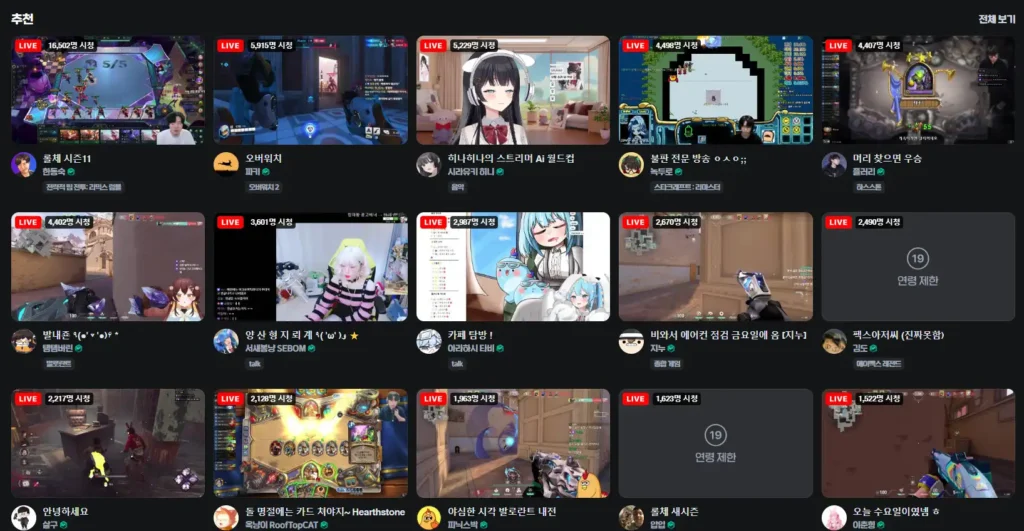
Multi-view metrics cheat sheet: Multi-view screen vs individual stream page
To help you quickly distinguish between multi-view aggregate data and individual channel metrics, refer to this comparison reference guide:
| Metric / Feature | Multi-view player screen (멀티뷰) | Individual channel page |
| Chat room behavior | Displays chat for selected active feed only | Displays dedicated channel chat exclusively |
| Viewer count display | Combined total of all active streams | Exact standalone viewer count for that streamer |
| Community interaction | Shifts dynamically as you switch video feeds | Focused on one specific streamer’s fanbase |
| Best use case | Watching esports POV feeds or group collabs | Participating in a specific streamer’s community |
As shown in the cheat sheet, opening an individual channel page is the only way to view non-combined audience metrics and engage exclusively with a single creator’s community.
Common questions about multi-view chat and viewer counts
Here are quick answers to common questions about multi-view chat mechanics and viewer numbers:
Can I view all chat messages from every streamer in a single merged window during a multi-stream?
No. Multi-view players isolate chat feeds to prevent unreadable text spam. You must click on a different streamer’s video window to switch the chat panel to their separate conversation.
Is the viewer count displayed on the multi-view page the same as an individual streamer’s count?
No. The number shown on the main multi-view page is a combined total summing all streams in the layout. To see a specific streamer’s standalone viewer count, open their dedicated channel page in a new tab.
How can a streamer see their own separate viewer count during a collaborative multi-stream?
Streamers should avoid relying on the multi-view player total. Instead, monitor your personal creator dashboard (such as Chzzk Studio or SOOP station manager) in a separate window to view accurate, uncombined audience data.


